
A webcast is like a live television broadcast: it thrives on the energy of the speakers and seamless technology. A professional briefing is not a tedious extra task; it is the safety net for everyone involved. Guest speakers, especially those who are not in front of a camera every day, need clear guidelines to feel secure and appear confident .
This guide will help you optimally prepare yourself and your guest speakers.
1. The Schedule: Security Through Lead Time
A smooth process begins days before the actual event. We recommend the following rhythm:
- 4–5 days before: Send access data to all speakers and background assistants. This gives everyone the chance to log in at their leisure and familiarize themselves with the platform.
- 1–2 days before: A joint technical check and training session (approx. 60 min). Here, you discuss the flow and go through the handovers between speakers.
- 24 hours before: Final presentations (16:9 PDF) and videos (mp4) should be uploaded by now. This avoids unnecessary stress shortly before the start.
- 20 minutes before start: The "Warm-up" login. All speakers gather in the virtual backstage area for a final audio and video check.
2. Technical Foundations: Hardware & Browser
The best story loses its impact if the sound stutters or the picture is blurry.
- The Device: Use a laptop or PC. Experience shows that a smartphone or tablet is not practical for speakers because you need to keep an eye on slides, chat, and questions simultaneously alongside your presentation.
- The Browser: Use the latest versions of Google Chrome, Mozilla Firefox, or Microsoft Edge.
- Internet Connection: A stable line of at least 1.5 Mbit/s is mandatory. A LAN cable is always more secure than Wi-Fi. Close all unnecessary tabs and applications.
- Important for Home Office Speakers: Ensure that roommates or family members on the same network do not perform large up- or downloads (e.g., streaming or gaming) during your session.
- Audio Quality: A wired headset is the most secure choice to avoid echoes. Bluetooth headphones are possible but are experience-proven to be more error-prone.
3. Visuals & Etiquette: Lights, Camera, Action!
You don’t need a studio setup to look professional. A few simple tricks are enough:
- Lighting & Environment: Use natural light from the front. Never sit with your back to a window. Find a quiet room and inform others that you must be undisturbed.
- Camera Height: The camera lens should be at eye level. Tip: Place your laptop on a stack of books.
- The 3-Dot Menu: Under your video image in the tool, you can use the three small dots to adjust your background or change the source for the microphone/camera if necessary.
- Clothing: Wear plain, non-white clothing. Avoid fine stripes or checks, as these can flicker in the image (moiré effect).
- Eye Contact: Look directly into the camera, not just at the screen. This builds a real connection with the audience. Don't forget to smile!
4. Organization & Live Behavior
A smooth process requires clear roles and discipline during the stream.
- Overlays & Lower Thirds: If overlays or lower thirds have been prepared and uploaded, determine who will activate them. This is done via a click in the menu on the left side.
- Mute Rule: Mute yourself when you are not speaking. Since webcams are often audio-activated, loud noises in your room could cause the camera to jump to you unintentionally.
- Slide Discipline: Only click through the slides when you are actually presenting. The slides are live for all viewers!
- Moderator Chat: Always keep an eye on the internal chat in the backend. This is where the team communicates invisibly to the participants.
- Q&A Preparation: Prepare 2-3 backup questions in case the audience is initially hesitant.
5. First Aid: When Technology Falters
Even the best technology is not infallible: minor mishaps are simply part of the live character. The audience is usually very forgiving if you handle it confidently. Stay calm and do not panic.
- The Universal Fix: If audio or video stutters, close the browser and log in again immediately. If that doesn't help, restart the computer.
- Prevention: Restart your computer before the webcast , avoid updates "just before live," and deactivate automatic updates during the session.
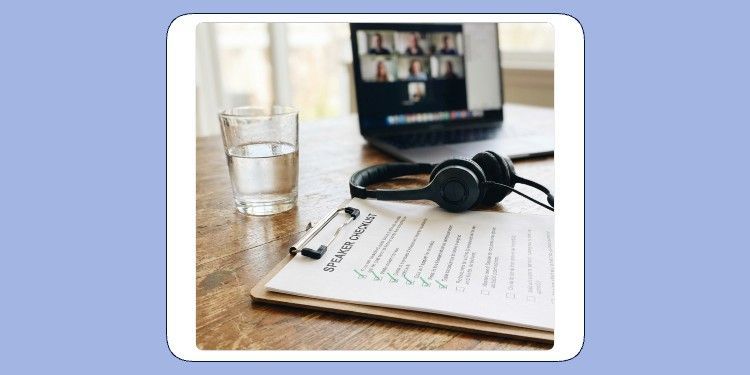
📋 The Detailed Speaker Checklist
Copy this guide as a working basis for your guest speakers:
Preparation (at least 24h before)
☐ Hardware: Provide laptop/PC (no tablet/smartphone) and a wired headset.
☐ Software: Update Google Chrome, Firefox, or Edge.
☐ Content: Upload presentation as 16:9 PDF (no animations) and videos as mp4.
☐ Branding: Overlays/lower thirds generated and uploaded in the system?
Event Day Setup
☐ Environment: Quiet room, neutral background, phone on silent.
☐ Light: Natural light from the front, no window at the back.
☐ Position: Camera at eye level (Tip: books under the laptop).
☐ Software Check: Close Teams, Zoom, Skype, and all unnecessary browser tabs.
☐ Connection: Connected via LAN cable. No parallel up-/downloads in the household.
Shortly Before Start (20 min before)
☐ Login: Logged in on time and performed final audio/video check.
☐ Settings: Background and sources finally set via the 3-dot menu in the tool.
☐ Chat: Moderator chat in the backend opened for internal info.
During the Live Stream
☐ Microphone: Mute when not speaking (prevents camera jumps).
☐ Focus: Look directly into the camera and smile.
☐ Presentation: Only control your own slides – the slides are live!
🆘 Emergency First Aid
☐ The "Universal Fix": If audio or video stutters, close your browser and log in again immediately.
☐ Moderator Chat: Always keep an eye on the internal moderator chat in the tool for instructions from your team.
☐ Hardware Check: Are all cables plugged in? Is your microphone physically muted on the device itself?
☐Don't Panic: Stay calm, smile, and wait for a signal from your team. Confidence is more important than perfection.


