
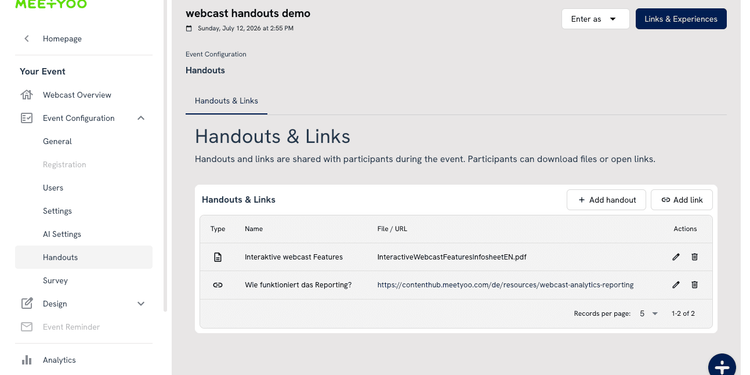
Sending materials by email after the webcast is standard practice. The problem: the email arrives hours later, lands in the wrong inbox, or simply isn't opened. With the Handouts feature in MEETYOO Show, that's no longer an issue — files and links are available directly inside the player, clickable in real time, for every participant simultaneously.
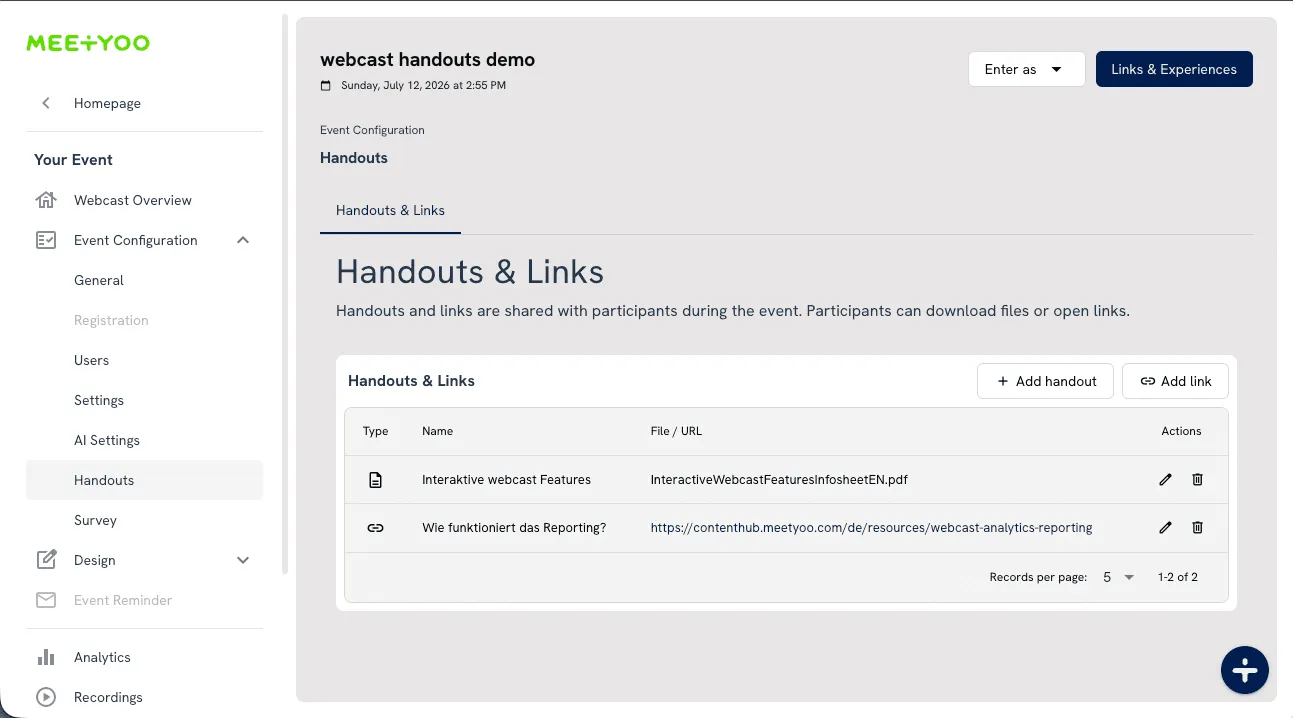
What are handouts & links?
Handouts are files — PDFs, slide decks, infosheets — that you make available for download directly inside the webcast player. Links work the same way, but point to an external URL instead of a file.
You configure both once in the event setup. During the webcast, participants find all materials in the player under the "Downloads" and "Links" tabs — right next to the Q&A button.
How to set up handouts & links
The setup takes just a few steps:
- Open your event in MEETYOO Show and go to Event Configuration → Handouts
- Click "Add handout" to upload a file — drag & drop or file browser
- Give it a clear, descriptive name (this is what participants will see)
- Click "Add link" to add an external URL and give it a title
- Save — that's it
You can combine as many handouts and links as you need. They go live immediately and are visible to all participants.
Tip: Name handouts specifically, not generically. "Product Overview Q3 2026" works better than "Presentation". Participants know exactly what they're downloading.
What participants see
The webcast player has two dedicated tabs at the bottom: Downloads for files and Links for external URLs. Both are accessible throughout the entire event — even while the presentation is running.
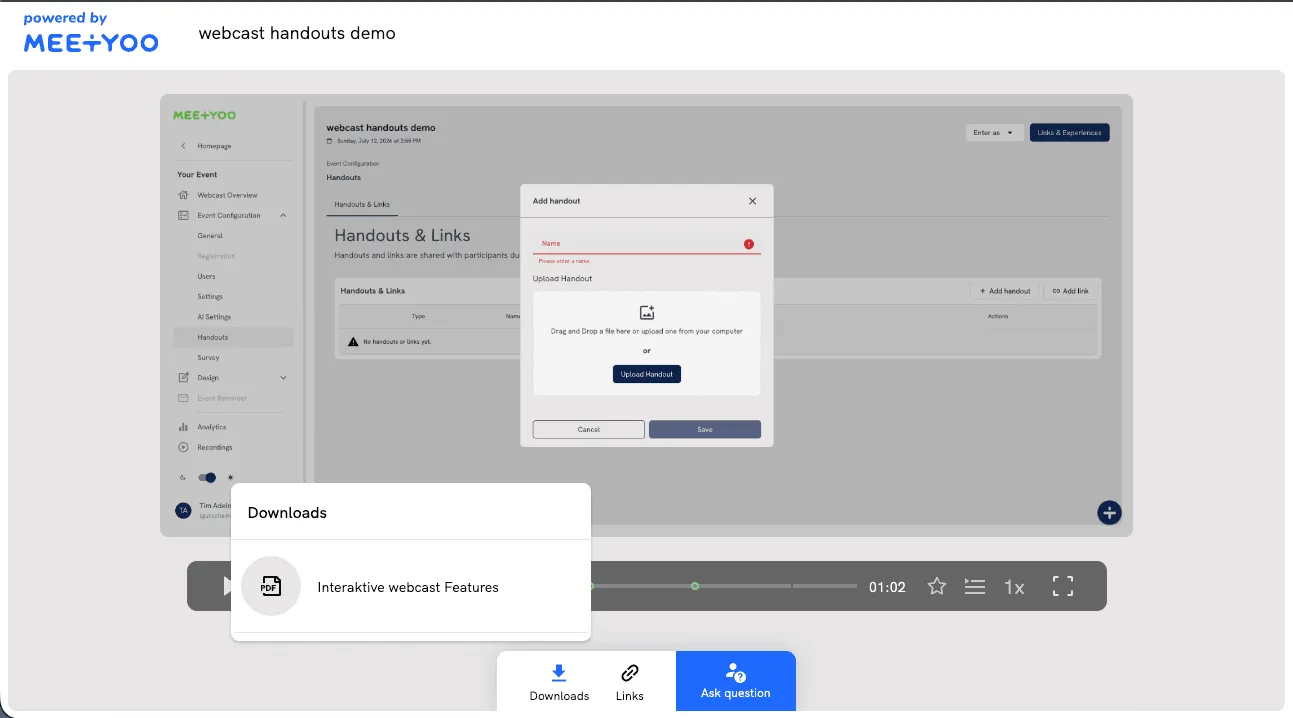
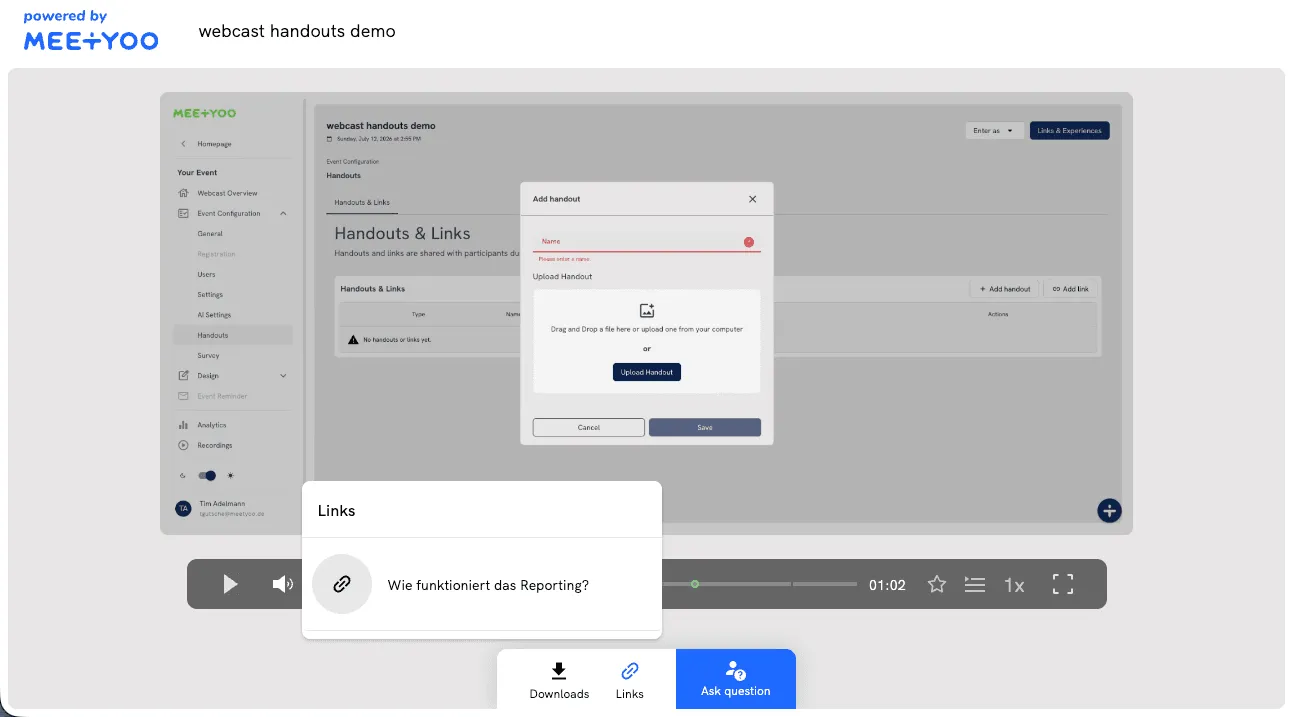
The experience is frictionless: one click downloads the file or opens the link in a new tab — without interrupting the webcast.
When this feature makes a real difference
The Handouts feature sounds simple. Used thoughtfully, it meaningfully raises the value of any webcast:
- CEO townhall: Provide the quarterly deck as a PDF — participants can follow along during the Q&A without switching screens.
- Compliance training: Make the policies being discussed available as a direct download. No hunting through shared drives afterwards.
- Product launch: Link to the product page or datasheet — interested viewers can click through during the event while others keep watching.
- Marketing webinar: Offer a follow-up whitepaper as a handout. Lead nurturing starts inside the player, not in a follow-up email three days later.
- Partner briefing: Share documents as a download exclusively with registered participants — no separate email distribution required.
Real-world example: A pharmaceutical company runs a physician briefing on a new compound. The prescribing information and study summary are available as downloads directly in the webcast. No attachment, no follow-up request — everything where the content is being discussed.
Handouts vs. the post-event email: why the difference matters
The standard approach: send materials by email after the event. The problem: the email arrives hours later, lands in the wrong inbox, or simply isn't opened.
Handouts in the webcast player are contextual. Participants see the materials exactly when they're relevant — during the event, alongside the content being presented. That increases usage and cuts down on follow-up work on your end.
Good to know: The Handouts feature is available on all MEETYOO Show plans — including the free Forever Free plan.
Conclusion
Handouts & Links in MEETYOO Show are a small configuration with a big impact. You give participants everything in one place — slide deck, datasheet, further reading — right inside the player, without any media break. That makes your webcast more complete and takes post-event admin off your plate.
FAQ
Which MEETYOO Show plans include the Handouts feature?
The Handouts feature is available on all MEETYOO Show plans — including the free Forever Free plan. You can test it immediately, no upgrade required.
Can participants download handouts after the live event?
Yes — as long as your event is active or available on demand, handouts and links remain accessible in the player. Participants who missed the live session can still access all materials.
How many files can I upload per webcast?
You can combine as many handouts and links as you need. There's no fixed limit — and the setup stays clean because each file gets its own descriptive name.
Which file formats does the Handouts feature support?
The feature supports common formats including PDF, PowerPoint, and Word documents. We recommend PDFs for optimal display consistency across all devices.
Can all participants see the handouts, or only registered ones?
Handouts are visible to everyone with access to the webcast player. If your event requires registration, only registered participants can access the player — and therefore the materials.
Can I add handouts during a live webcast?
Handouts are configured in the event setup before the event starts. For spontaneous additions during a live event, the chat feature lets you share links directly in the chat in real time.


